1. Save an export before you remove anything
1. 무엇이든 지우기 전에 내보내기 사본 남기기
Leave the old extension installed until the TabBunker preview in section 3 shows the links you expect. A second copy of the same file, outside the browser profile, is the copy you still have if the first one is easy to delete.
3절의 TabBunker 미리보기에 기대한 링크가 보이기 전에는 원래 확장을 설치된 채로 두세요. 같은 파일을 브라우저 프로필 밖에 한 번 더 복사해 두면, 첫 파일을 지우기 쉬워도 사본이 남습니다.
OneTab
OneTab
- OneTab's help page, checked 2026-10-01, says the menu on a stored group can copy links to the clipboard. It also says you can share that group as a web page. A shared web page is not a saved file on your disk. Copy the links, paste them into a text editor, and save a
.txtfile. - The OneTab site still says tabs can be exported and imported as a list of URLs. The tab recovery page still names an Import/Export feature inside OneTab. The help page checked the same day does not spell out one button label for that feature, so open the copied text and look for addresses before you trust it.
- OneTab's troubleshooting page says not to uninstall and reinstall unless you are willing to wipe OneTab data, with one exception they state themselves: uninstall is acceptable if you use their encrypted sync and you know that password. A sync password is still not a file this guide can read. Save the text file anyway.
- 2026-10-01에 확인한 OneTab 도움말은 저장한 그룹의 메뉴에서 링크를 클립보드로 복사할 수 있다고 적습니다. 같은 페이지는 그룹을 웹 페이지로 공유할 수도 있다고 적습니다. 웹 페이지 공유는 디스크에 남는 파일이 아닙니다. 링크를 복사해 텍스트 편집기에 붙여 넣고
.txt파일로 저장하세요. - OneTab 사이트는 탭을 주소 목록으로 내보내고 가져올 수 있다고 아직 적고, 탭 복구 페이지는 OneTab 안의 Import/Export 기능을 여전히 부릅니다. 같은 날 확인한 도움말은 그 기능의 버튼 이름을 하나로 적지 않습니다. 복사한 글을 열어 주소가 보이는지 먼저 확인하세요.
- OneTab 문제 해결 페이지는 데이터를 지워도 되는 경우가 아니면 삭제 후 재설치를 하지 말라고 합니다. 그 페이지가 스스로 적은 예외는, 암호화 동기화를 쓰고 그 비밀번호를 알고 있을 때입니다. 동기화 비밀번호는 이 글이 읽는 파일이 아닙니다. 텍스트 파일은 그래도 저장하세요.
Session Buddy
Session Buddy
- Session Buddy's import and export page, checked 2026-10-01, says: click the gear icon, choose Export…, choose all collections or the selected ones, choose a format, then Select destination. If the browser cannot pick a folder, that button says Download and the file goes to the default downloads folder.
- The same vendor's backup page, checked the same day, is a different command: gear, then Backup, then Select destination or Download. That backup is Session Buddy's own copy for its Restore command. Keep it. Section 2 explains why that file is not the one to assume TabBunker can read.
- Open the export in a text editor and check that it contains the addresses you meant to save. Keep the original file until the import preview matches.
- 2026-10-01에 확인한 Session Buddy 가져오기·내보내기 페이지의 순서는 이렇습니다. 톱니바퀴에서 Export…를 고르고, 전체 컬렉션 또는 선택한 컬렉션을 고른 뒤 형식을 정하고 Select destination을 누릅니다. 브라우저가 폴더를 고르지 못하면 그 버튼은 Download이고 파일은 기본 다운로드 폴더로 갑니다.
- 같은 제작사의 백업 페이지도 같은 날 확인했습니다. 이건 다른 명령입니다. 톱니바퀴에서 Backup, 그다음 Select destination 또는 Download입니다. 이 백업은 Session Buddy의 Restore용 사본입니다. 보관하세요. 그 파일을 TabBunker가 읽는다고 보면 안 되는 이유는 2절에 있습니다.
- 내보내기 파일을 열어 저장하려던 주소가 들어 있는지 확인하세요. 가져오기 미리보기 수가 맞을 때까지 원본 파일을 보관하세요.
2. Which files TabBunker 1.1.1 reads
2. TabBunker 1.1.1이 읽는 파일
Import supports OneTab text, some Session Buddy JSON files, and TabBunker backups. Check the preview first. The recovery tool includes Trash groups from a TabBunker backup; importing into the vault excludes them.
OneTab 텍스트, 일부 Session Buddy JSON, TabBunker 백업을 가져올 수 있습니다. 미리보기를 먼저 확인하세요. 복구 도구는 TabBunker 백업의 휴지통 그룹도 보여 주지만, 보관함 가져오기는 그 그룹을 제외합니다.
OneTab text
OneTab 텍스트
A text file, not JSON. Each kept line is an address, or an address, a space, a vertical bar, a space, and a title:
JSON이 아닌 텍스트 파일입니다. 남기는 줄은 주소이거나, 주소 뒤에 공백, 세로 막대, 공백, 제목이 온 줄입니다.
https://example.com | Examplehttps://example.comwith no title- A blank line starts another group.
- A line that is not an address is skipped. The vault preview counts those lines as excluded.
- OneTab group names are not on these lines. The vault names the groups Imported 1, Imported 2, and so on. In a Korean UI that label is 가져온 그룹 1.
- Stars, tasks, and folder names from OneTab are not in this text, so they are not imported.
https://example.com | Example- 제목 없는
https://example.com - 빈 줄은 다음 그룹을 시작합니다.
- 주소가 아닌 줄은 건너뜁니다. 보관함 미리보기는 그 줄을 제외 수에 넣습니다.
- OneTab 그룹 이름은 이 줄에 없습니다. 보관함은 그룹 이름을 Imported 1, Imported 2처럼 붙입니다. 한국어 화면의 그 이름은 가져온 그룹 1입니다.
- OneTab의 별, 할 일, 폴더 이름은 이 텍스트에 없으므로 가져오지 않습니다.
Session Buddy: use the URLs export for the current version
Session Buddy: 현재 버전은 URLs로 내보내세요
To move addresses now, choose URLs in Session Buddy Export. Each line becomes a link in one TabBunker group. Original titles and collection names are not preserved. If you need those, keep using Session Buddy until a compatible import is available. CSV, HTML, and separate title/URL pairs are unsuitable here.
지금 주소를 옮기려면 Session Buddy 내보내기에서 URLs를 고르세요. 각 줄이 TabBunker 그룹 하나의 링크가 됩니다. 원래 제목과 컬렉션 이름은 유지되지 않습니다. 그것이 필요하면 호환되는 가져오기가 생길 때까지 Session Buddy를 유지하세요. CSV·HTML·제목과 주소가 따로 있는 형식은 여기에 맞지 않습니다.
Older JSON compatibility details예전 JSON 호환 형식 자세히
A session array, or an object containing sessions, collections, savedSessions, or data arrays, can be read when each session has tabs, windows[].tabs, or groups[].tabs. A single windows/tabs object also works. The current folders[].links structure is not read. Preview the actual file; the file extension alone does not establish compatibility.
세션 배열 또는 sessions·collections·savedSessions·data 배열을 가진 객체에서 세션 안에 tabs·windows[].tabs·groups[].tabs가 있으면 읽습니다. windows나 tabs를 가진 단일 객체도 읽습니다. 현재 folders[].links 구조는 읽지 않습니다. 확장자만으로 호환된다고 판단하지 말고 실제 파일을 미리 보세요.
TabBunker JSON
TabBunker JSON
A TabBunker backup is a JSON object with version and groups. The usual names are tabbunker-latest.json and a dated tabbunker-YYYYMMDD-HHMM.json. In the vault, groups already marked as trash are not imported. They count toward excluded lines. Group titles, tab titles, addresses, and a pinned flag on a tab are what the file carries into the vault.
TabBunker 백업은 version과 groups가 있는 JSON 객체입니다. 흔한 이름은 tabbunker-latest.json과 날짜가 붙은 tabbunker-YYYYMMDD-HHMM.json입니다. 보관함에서는 이미 휴지통으로 표시된 그룹을 가져오지 않고, 그 수를 제외 줄에 넣습니다. 파일이 보관함으로 옮기는 것은 그룹 제목, 탭 제목, 주소, 탭의 고정 표시입니다.
3. Import, preview, and merge in the vault
3. 보관함에서 가져오기, 미리보기, 합치기
- Open TabBunker from the toolbar icon. Choose Open full vault. The Korean label is 전체 화면으로 관리.
- Choose Import (가져오기). On an empty vault the same button can say Import from another tab manager (다른 탭 관리자에서 가져오기).
- Choose the
.txtor.jsonfile. Nothing is uploaded. The extension has no server and no account. - Read the dialog titled Import Preview (가져오기 미리보기) before you press anything else. If the file produced no groups, there is no dialog. The notice says No importable data found.
- 툴바 아이콘으로 TabBunker를 열고 Open full vault를 고릅니다. 한국어 이름은 전체 화면으로 관리입니다.
- Import(가져오기)를 고릅니다. 빈 보관함에서는 같은 자리가 Import from another tab manager(다른 탭 관리자에서 가져오기)일 수 있습니다.
.txt또는.json파일을 고릅니다. 어디로도 올리지 않습니다. 확장에는 서버도 계정도 없습니다.- 다른 버튼을 누르기 전에 제목이 Import Preview(가져오기 미리보기)인 창을 읽습니다. 그룹이 하나도 없으면 창이 열리지 않고, 가져올 수 있는 데이터가 없어요.라는 알림이 나옵니다.
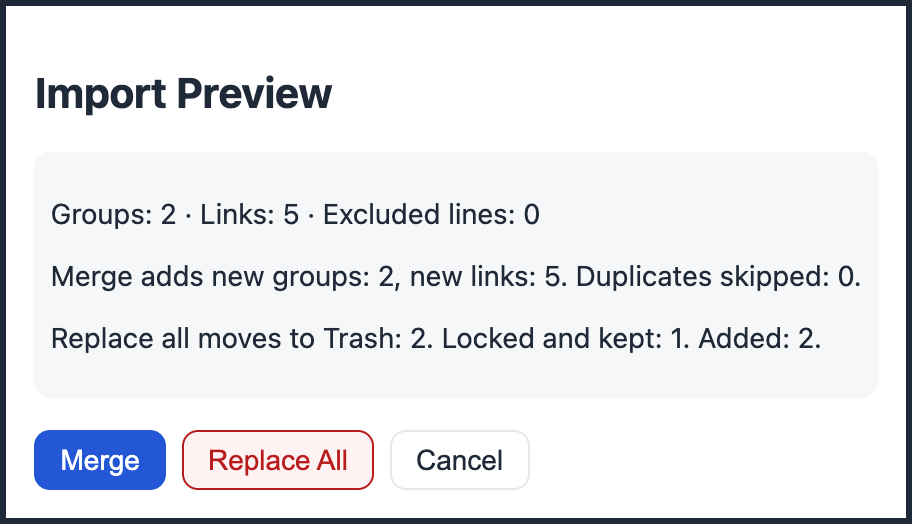
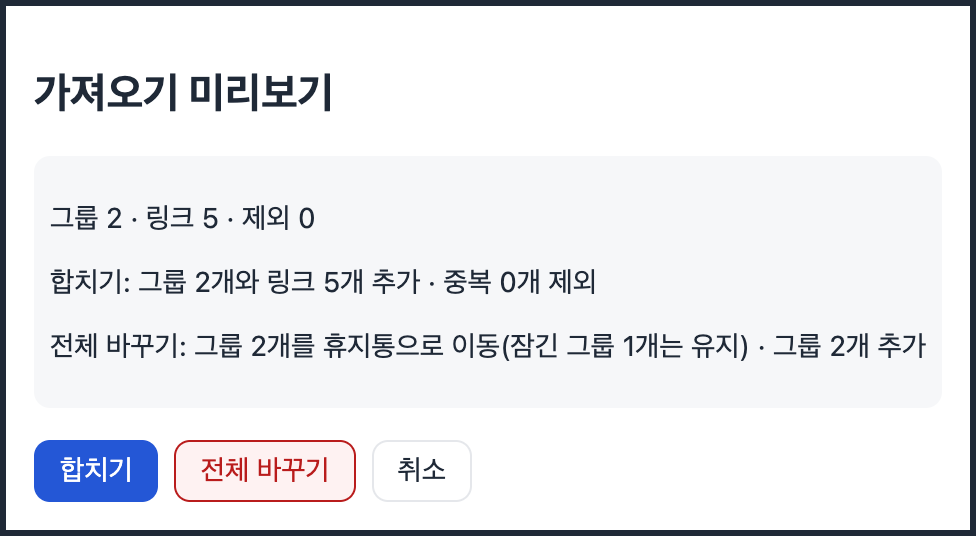
Check the group and link counts, excluded entries, and what each action will add or move to Trash. Cancel if these do not match your export.
그룹·링크 수, 제외된 항목, 각 버튼이 추가하거나 휴지통으로 옮길 수를 확인하세요. 원본과 맞지 않으면 취소하세요.
- Merge (합치기) adds groups whose titles are not already in the vault. If a title matches an existing group, addresses already in that group are left out and counted as duplicates skipped. Duplicate addresses that live in a different group are not removed by Merge.
- Replace All (전체 바꾸기) moves unlocked groups to Trash. It does not erase them. Locked groups stay. The imported groups are added. Trash keeps groups for 30 days.
- Cancel (취소) closes the preview. The vault does not change.
- Settings has Skip duplicate URLs on import (가져올 때 중복 주소 빼기). It is off by default. When it is on, repeated addresses inside one imported group are removed before this preview. The preview lines above are the numbers that will be applied.
- After importing, compare the vault with the original export before you remove the old extension.
- 합치기는 보관함에 같은 제목이 없는 그룹을 더합니다. 제목이 이미 있는 그룹과 같으면, 그 그룹에 이미 있는 주소는 빼며 중복 제외로 셉니다. 다른 그룹에 있는 같은 주소는 합치기가 빼지 않습니다.
- 전체 바꾸기는 잠기지 않은 그룹을 휴지통으로 옮깁니다. 바로 지우지는 않습니다. 잠긴 그룹은 남고, 가져온 그룹이 추가됩니다. 휴지통은 그룹을 30일 동안 둡니다.
- 취소는 미리보기를 닫습니다. 보관함은 바뀌지 않습니다.
- 설정에 가져올 때 중복 주소 빼기가 있습니다. 기본은 꺼짐입니다. 켜면 가져온 그룹 하나 안에서 반복된 주소를 미리보기 전에 뺍니다. 위에 적은 미리보기 수가 실제로 적용되는 수입니다.
- 가져온 뒤 원본과 보관함을 대조하고 나서 원래 확장을 지우세요.
Import restores titles and addresses. It does not restore a signed-in session, form fields, or unsaved text from those tabs. Those were never in the export file.
가져오기가 되돌리는 것은 제목과 주소입니다. 그 탭의 로그인 상태, 폼 입력, 저장하지 않은 글은 되돌리지 못합니다. 내보내기 파일에 처음부터 없었습니다.
4. Confirm the backup file was written
4. 백업 파일이 쓰였는지 확인
File backup is on by default. An import schedules a write. It does not finish at the instant you press Merge. The delay is 30 seconds unless you changed it to 5 minutes or 30 minutes. Until then the vault line can say File backup pending (파일 백업 대기 중) or File backup in progress (파일 백업 저장 중). When the browser reports the download complete, the line says File backup just now (파일 백업 방금), then a relative time such as File backup 5 min ago.
파일 백업은 기본으로 켜져 있습니다. 가져오기는 파일 쓰기를 예약합니다. 합치기를 누른 그 순간에 끝나지는 않습니다. 대기 시간은 바꾸지 않았다면 30초이고, 5분 또는 30분으로 바꿀 수 있습니다. 그때까지 보관함 줄은 파일 백업 대기 중 또는 파일 백업 저장 중일 수 있습니다. 브라우저가 다운로드 완료를 알리면 파일 백업 방금이 되고, 이후에는 파일 백업 5분 전처럼 상대 시각이 됩니다.
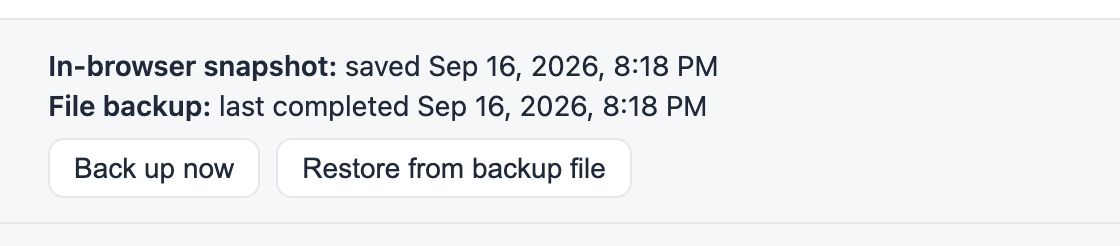
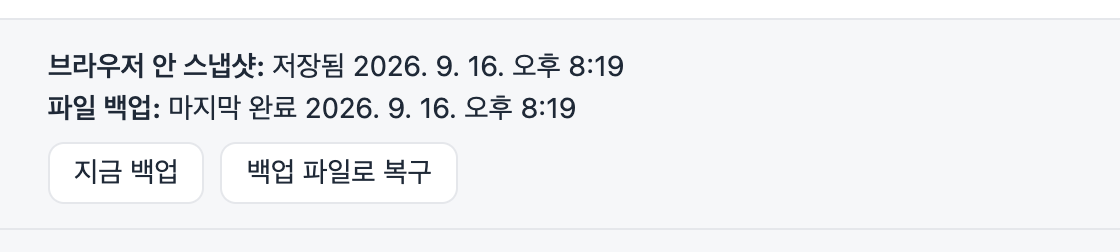
- Back up now (지금 백업) writes the file without waiting for the delay.
- The file is
tabbunker-latest.jsoninside a TabBunker folder in Downloads. The folder name can be changed in Settings. One dated file per hour is also kept, up to the 30 newest, namedtabbunker-YYYYMMDD-HHMM.json. - If the line says File backup off (파일 백업 꺼짐), no file is being written. Turn on Save backup files to Downloads (다운로드 폴더에 백업 파일 저장) in Settings, then use Back up now.
- A canceled download pauses file backup. The line tells you to use Back up now to resume. Settings also shows Last saved and the time (마지막 저장).
- 지금 백업은 대기 없이 파일을 씁니다.
- 파일은 다운로드 폴더 안 TabBunker 폴더의
tabbunker-latest.json입니다. 폴더 이름은 설정에서 바꿀 수 있습니다. 한 시간에 하나씩 날짜 파일도 최근 30개까지 남으며 이름은tabbunker-YYYYMMDD-HHMM.json입니다. - 줄이 파일 백업 꺼짐이면 파일이 쓰이지 않습니다. 설정에서 다운로드 폴더에 백업 파일 저장을 켜고 지금 백업을 누르세요.
- 다운로드를 취소하면 파일 백업이 일시 중지되고, 줄이 지금 백업으로 다시 시작하라고 알려 줍니다. 설정에는 마지막 저장과 시각도 나옵니다.
Open the JSON in a text editor if you want to see the addresses yourself. When that file exists, you can remove the old extension. Not before.
주소를 직접 보고 싶으면 JSON을 텍스트 편집기로 여세요. 그 파일이 생긴 뒤에 원래 확장을 지웁니다. 그 전에는 지우지 않습니다.
5. After a reinstall: what the file still has
5. 다시 설치한 뒤 파일에 남는 것
Removing TabBunker removes the vault stored in the browser. It does not remove tabbunker-latest.json or the dated files, unless you delete those files yourself or the disk fails. There is no server copy.
TabBunker를 지우면 브라우저 안에 저장된 보관함은 사라집니다. tabbunker-latest.json과 날짜 파일은 그 파일을 직접 지우거나 디스크가 고장 나지 않는 한 남습니다. 서버에 사본은 없습니다.
- If those files are gone, the list is gone. Reinstalling does not recreate a file that was never written or was deleted.
- If a file is still there, reinstall TabBunker. Open the vault, choose Import or Restore from backup file (백업 파일로 복구), and choose
tabbunker-latest.jsonor a dated file. The hint under Restore from backup file says to choose one of those in the TabBunker folder inside Downloads. - Read the same preview as in section 3. The file is not applied until you choose Merge or Replace All.
- What comes back is group titles, tab titles, and addresses, plus a pinned flag when the tab had one. A login, a filled-in form, and unsaved page text do not come back.
- You can also read the file without reinstalling. The recovery tool runs in the browser, uploads nothing, and rebuilds a list of links and titles. Its limits are on that page.
- 그 파일이 없으면 목록도 없습니다. 다시 설치해도, 한 번도 쓰이지 않았거나 지워진 파일은 생기지 않습니다.
- 파일이 남아 있으면 TabBunker를 다시 설치합니다. 보관함을 열고 가져오기 또는 백업 파일로 복구를 누른 뒤
tabbunker-latest.json이나 날짜 파일을 고릅니다. 백업 파일로 복구 아래 안내도 다운로드 폴더 안 TabBunker 폴더에서 그 파일 중 하나를 고르라고 합니다. - 3절과 같은 미리보기를 읽습니다. 합치기나 전체 바꾸기를 고르기 전에는 적용되지 않습니다.
- 돌아오는 것은 그룹 제목, 탭 제목, 주소, 그리고 탭에 고정 표시가 있었다면 그 표시입니다. 로그인, 채워 둔 폼, 저장하지 않은 페이지 글은 돌아오지 않습니다.
- 다시 설치하지 않고 파일을 읽을 수도 있습니다. 복구 도구는 브라우저 안에서 돌고, 아무것도 올리지 않으며, 링크와 제목 목록을 다시 만듭니다. 한계는 그 페이지에 있습니다.
Recovery check and its limits, 2026-09-182026-09-18 복구 확인과 한계
An isolated Chrome for Testing run of TabBunker 1.1.0, rebuilt from its public tag, saved one group with two links to JSON. The file remained when the profile was started without the extension. Importing it into a new empty profile restored group titles, tab titles, addresses, and order. This did not test the store uninstall button, other browsers, deleted files, disk failure, or page content. It is a dated source-build check, not a check of today's store package.
공개 태그에서 다시 빌드한 TabBunker 1.1.0을 별도 Chrome for Testing에서 확인했습니다. 그룹 하나의 링크 두 개를 JSON으로 저장했고, 확장 없이 프로필을 다시 시작해도 파일은 남았습니다. 새 빈 프로필에 가져오니 그룹 제목·탭 제목·주소·순서가 같았습니다. 스토어 삭제 버튼, 다른 브라우저, 지워진 파일, 디스크 고장, 페이지 본문은 확인한 범위가 아닙니다. 당시 소스를 빌드한 확인이며 오늘 스토어 패키지의 확인은 아닙니다.
TabBunker is free and open source. It saves the tabs you pick on your device. With file backup on, each change writes a JSON file under Downloads. There is no account and no server. It does not make an empty list reappear, and it does not cover a deleted file or a failed disk. If the export steps above were the whole task, you can stop here. A dated comparison with other extensions is separate: tab backup extensions compared.
TabBunker는 무료 오픈소스입니다. 고른 탭을 내 기기에 저장합니다. 파일 백업을 켜 두면 변경마다 다운로드 폴더 아래에 JSON 파일을 씁니다. 계정도 서버도 없습니다. 이미 빈 목록을 되살리지는 못하고, 지워진 파일이나 고장난 디스크도 메우지 못합니다. 위의 내보내기 절차만 필요했다면 여기서 멈춰도 됩니다. 다른 확장과의 날짜 있는 비교는 따로 있습니다. 탭 백업 확장 비교.
Sources: OneTab help, troubleshooting, and tab-recovery pages; Session Buddy import/export, backup/restore, and formats pages, all checked 2026-10-01; TabBunker 1.1.1 import and backup code; the 2026-09-18 Chrome recovery record cited above. Questions and corrections: GitHub Issues.
근거: 2026-10-01에 확인한 OneTab 도움말·문제 해결·탭 복구 페이지, Session Buddy 가져오기·내보내기·백업·복원·형식 페이지, TabBunker 1.1.1 가져오기·백업 코드, 위에 적은 2026-09-18 크롬 복구 기록. 질문과 정정은 GitHub Issues로 보내 주세요.